 Doc
DocCreate a library
The first step to using DocGoblin is to create a library. In a library you can add your documents, index them, and search across all of them.
Your files are not copied or duplicated by DocGoblin — the software only stores the location of your documents. If you move, delete, or modify already-indexed files, subsequent searches may fail or return incomplete results. In that case, we recommend re-indexing those files.
Adding files
To add files to a library, click the add files button and select one or more files. DocGoblin supports PDF, text and EPUB files.
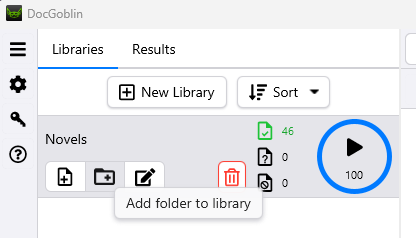
You can also select a folder. DocGoblin will then scan the folder and its subfolders for all files in supported formats.
The progress indicator shows what proportion of documents have been indexed. You can pause or resume an ongoing indexing process and search while indexing is in progress. These searches will not include files not yet indexed.
Simple search
The simplest way to use DocGoblin is to type one or more words in the search bar and press the Enter key or the search button. DocGoblin will display all results that contain at least one of those words.
When you perform a search, DocGoblin creates a score for each result. This score represents the relevance of the result to the query. Simply put, the more your search terms appear in a result (a page of a document), the higher its score.
Phrase search
You can search for an exact phrase by wrapping it in double quotes "". You can also select text in a document and right-click to perform a simple or phrase search.
Searching for multiple terms together
By adding + in front of certain words, you can make them required in the search results — useful for finding pages that mention all your search terms. This also works with phrase searches, for example: +"once upon a time".
Fuzzy search
To find words whose spelling you are unsure of, plural forms, or other spelling variations, you can use fuzzy search by adding a tilde ~ followed by a number representing the allowed number of letter differences after the word.
You can also use the fuzzy search button in the search bar to append ~1, ~2, or ~3 to a word.